



The New Shopping Cart at Slosson Uses JavaScript and Cookies in order to run, so make sure this is enabled on your browser (usually found in browser settings in the security section, make sure java-script and third party cookies are turned on for it to function properly). We only use the cookies to store how much of each item is in the shopping cart, java-script is needed for this to function properly, and to pass the shopping cart contents to our custom Jotform order-form.
Enable Javascript and Cookies
What to do if the shopping cart isn't working
Use the Manual Order Form on SlossonPlus.com
Alternatively you can order using our manual order form which doesn't use java-script, but requires manual entry of the product codes you wish to purchase.
Call in your order
If you are tired of dealing with forms and shopping carts, you could always call in your order during our hours of operation. Our number is 1-888-756-7766. Our hours of operation are from 10AM-5PM (Eastern Standard Time Zone) Monday-Friday.

Click the top-right icon to get to the shopping cart area from SlossonNews.com or SlossonPlus.com to get to our shopping area. It is labeled as the "Slosson News Shopping Cart & Checkout".
How to find the Slosson Shopping Cart
How to use the Shopping Cart
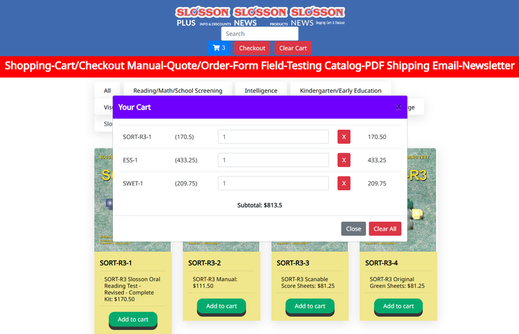
If you click the Blue cart Icon the window that displays "Your Cart" appears. You can view your cart's current contents, and the subtotal. To close the window click the X in the top right or click the "Close" Button. The "Clear" button will remove all items currently in the cart, if you want to quickly empty your cart. You can also adjust the number of items, or remove only 1 product code from the cart by clicking the red "X" next to the item.
Add Item to Cart
If you see an item you want, you can click on the green "Add to Cart" button and it will be saved to your cart in your browser. You should also see the number of items listed next to the Blue Cart Icon (in the example image above it shows there are 3 items in the cart).
Remove Item to Cart
Checking Out
When you are satisfied with what is in your cart you can click the Red "Checkout" button next to the blue shopping cart icon. You should see Checkout information listed similar to the below image.
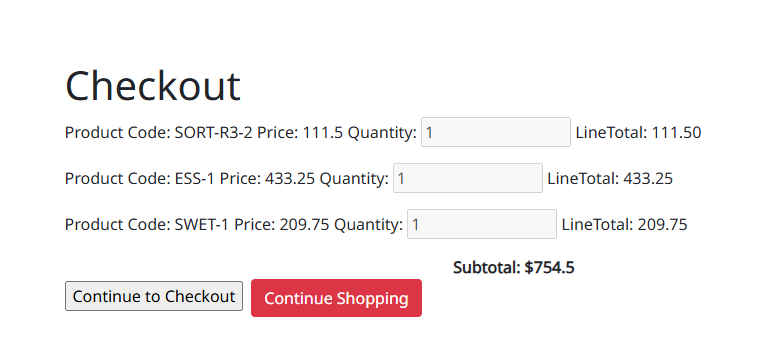
After clicking the checkout button, look for the words checkout, and the list of product codes, quantities, line-totals, the subtotal, and 2 buttons (As seen in the image above). Continue to checkout will take you to our Jotform page (an external website), which should have the contents of the shopping cart filled in already, although you could manually enter item codes and quantities as well. The continue Shopping button would hide the checkout information and let you resume where you left off. If you are on the detail page the checkout information will be above the add to cart buttons and below the item descriptions.
Viewing More Item Details
If you click on the image of the product it will take you to a page with more information about the product, you can also add the item to car and check out from the more detailed pages.
Searching For A Product
Click on the Category Buttons to View items from a particular category, the All Category lists everything. You can use the search bar to search by product code or title. Note: The search will look for exact matches against the product names, if nothing is found you will have to clear the text in the search bar for the items to show up again. Do not hit enter after searching, simply type key words into the search bar and see if any products with matching words show up.
Checking Out Continued...
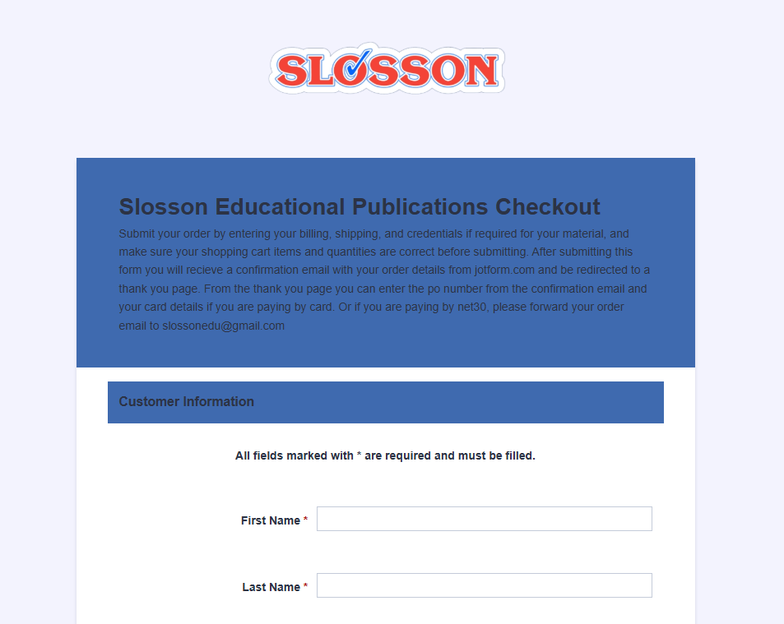
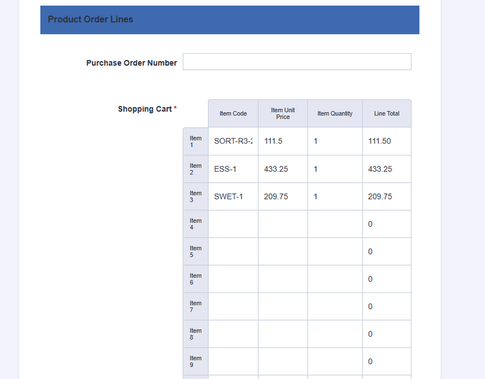
After hitting the "Checkout" and "Continue Checkout" buttons, you should be taken to our JotForm (external page), which will be pre-populated with your shopping cart contents. It should look like the images above. Just fill out the rest of the form and make sure that the Shopping Cart Items appear correct.
Payment
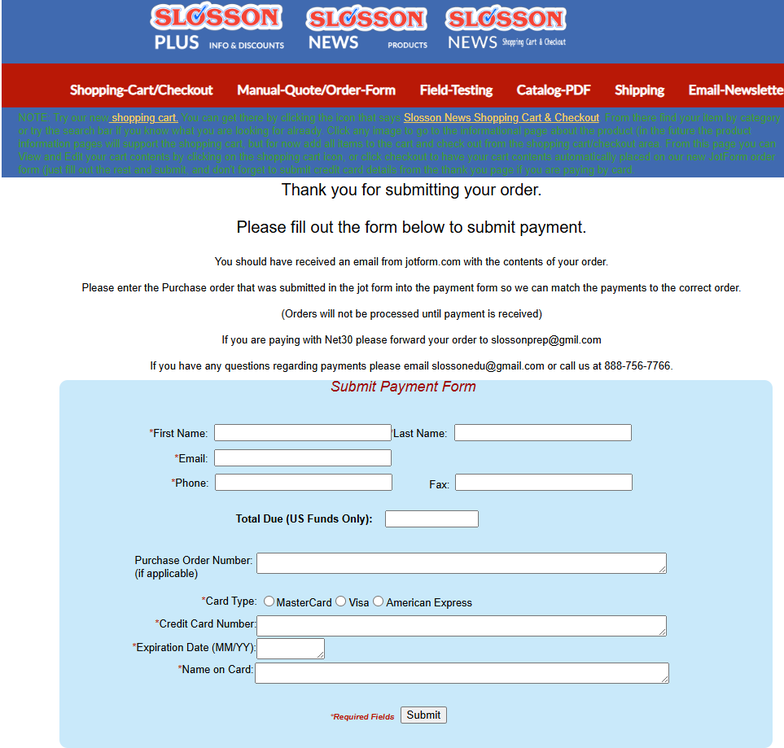
After hitting the "Continue to Payment" button at the bottom of the JotForm Order Form. You will be re-directed to a page where you can submit your payment details. And if you wait a few minutes, you should receive an order confirmation email from JotForm.com. If you are paying by Net30, you can forward this email to [email protected], but if you intend to pay by credit card, please fill out your name, and if you could also put the "Auto Purchase Order" number that appears in your JotForm email containing your order confirmation. This helps us match your payment to your order. Orders without a payment will not be fulfilled, feel free to call if you need help ordering. Or you can pay for your order by returning to slossonnews.com/submitpaymentform.html to fill out or credit card and purchase order information.
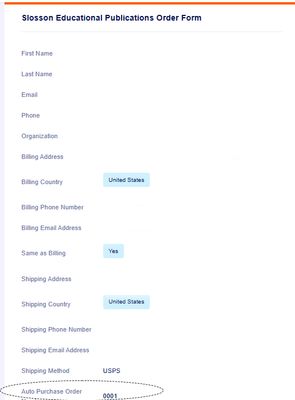
JotForm Confirmation Email Example Circled section is where to find the Auto-Purchase Order Number.
Slosson's Thank you page, also where you submit payment